

1 minute read

If you use Google Slides instead of Microsoft PowerPoint, you probably noticed that the option to right click and "Save as Picture" isn't available. But never fear! Here's an easy way to save icons and illustrations for use in policies, webpages, reports, presentations, homemade job aids, or anywhere else your little purple heart imagines! 💜
-
Create a new blank presentation in Google Slides
- Pro tip: You can type "presentation.new" directly in the address bar of your browser to instantly create a blank presentation (and this also works for "doc.new" and "sheet.new").
- Resize the slides to 5 x 3 inches
- Click "File" and select "Page setup"
.png?width=433&height=653&name=image%20(1).png)
- Then type in your custom dimensions
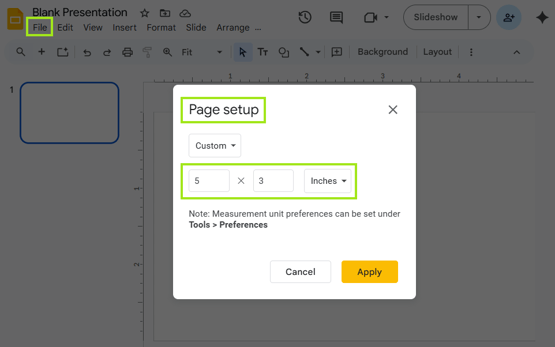
- Click "File" and select "Page setup"
-
Copy the illustration you want from the source slide
.png?width=548&height=489&name=image%20(5).png)
-
Paste the illustration into the 5 x 3" presentation slide
-
Change the colors and make any other necessary edits to the illustration
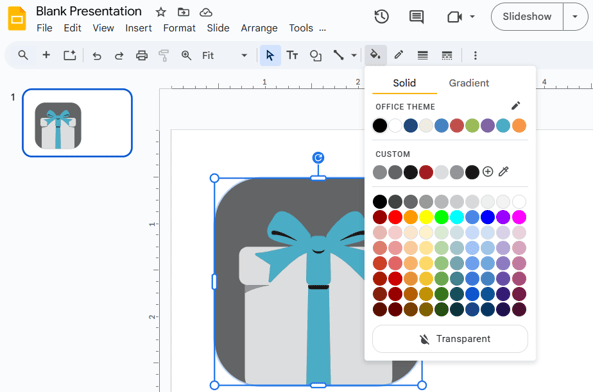
- Download the file as a PNG
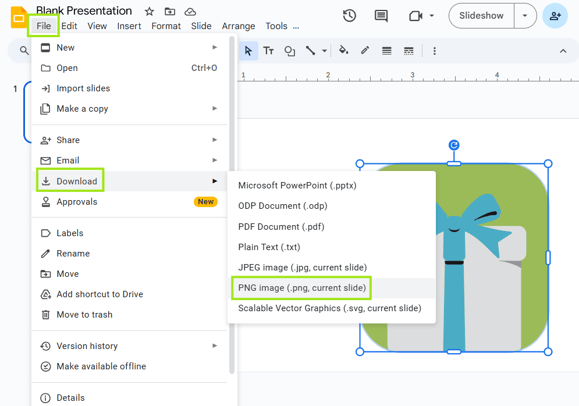
And that's it! Now you can use this customized illustration anywhere you'd like.